
Simple Tips for Organizing Files on Your Computer Effectively
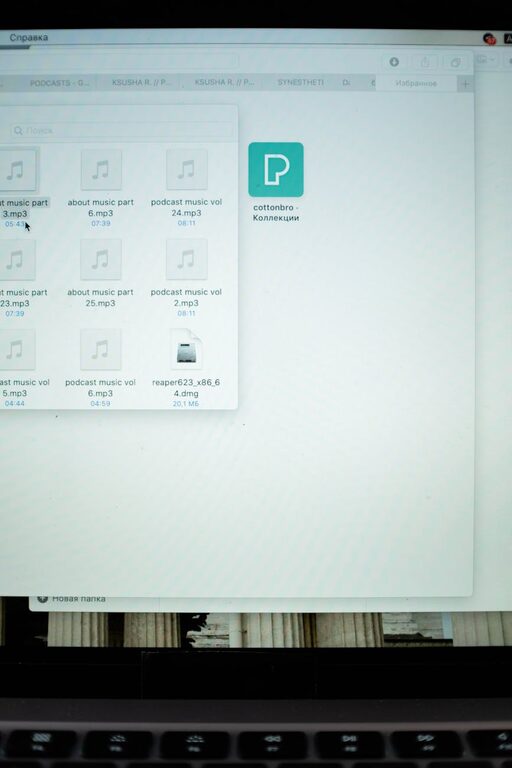
Keeping your computer files organized can save you time, reduce stress, and improve your workflow. Whether you use your computer for work, school, or personal projects, managing your digital files efficiently helps you find what you need quickly and keeps your system running smoothly. In this post, we will explore practical tips to help you organize files on your computer effectively.
Why Organizing Files Matters
Before diving into the how-to, it’s important to understand why organizing files is beneficial:
– Saves time: You won’t waste minutes searching for documents or images.
– Reduces stress: A tidy digital space feels less overwhelming.
– Improves productivity: Easy access to important files lets you focus on your tasks.
– Protects data: Organized folders reduce risks of accidental data loss.
Step 1: Create a Logical Folder Structure
The foundation of file organization is a clear, consistent folder structure. Think about how you naturally categorize your files and build from there.
Tips for Building Your Folder Hierarchy
– Start broad, then narrow down: For example, have main folders like “Work,” “Personal,” and “Projects.” Inside each, create subfolders with specific topics or dates.
– Use clear and descriptive names: Avoid vague labels like “Stuff” or “Miscellaneous.” Instead, try “Invoices 2024” or “Vacation Photos.”
– Limit folder depth: Try not to nest folders too deeply to avoid complicated navigation.
Step 2: Name Your Files Clearly and Consistently
File names play a crucial role in finding documents quickly.
Best Practices for File Naming
– Be descriptive: Include key information such as project name, type, or date. Example: “Budget_Report_March_2024.xlsx.”
– Avoid spaces and special characters: Use underscores or dashes to improve compatibility.
– Use a consistent date format: Either YYYY-MM-DD or MM-DD-YYYY to maintain order when sorted by name.
– Keep names concise but informative enough to identify the file at a glance.
Step 3: Regularly Sort and Delete Unneeded Files
Organizing isn’t a one-time task. Set reminders to tidy your files on a weekly or monthly basis.
Tips for Maintenance
– Archive old files: Move completed projects to a separate archive folder or external drive.
– Delete duplicates and outdated files: Free up space by removing unnecessary copies.
– Use built-in tools: Many operating systems have features to help detect duplicate files or large files consuming space.
Step 4: Utilize File Management Tools and Features
Modern computers offer helpful tools that make organizing files easier.
Examples of Useful Tools
– Search functions: Master your operating system’s search capabilities to locate files quickly.
– Tags and labels: Some systems allow you to tag files with colors or keywords for easier sorting.
– Cloud storage services: Tools like Google Drive or Dropbox help you organize and back up files while making them accessible from anywhere.
– File synchronization apps: Keep files updated across multiple devices automatically.
Step 5: Back Up Your Files Regularly
Organizing files is also about protecting them. Regular backups ensure your data is safe in case of hardware failure or accidental deletion.
Backup Tips
– Choose a reliable backup method: External hard drives, cloud services, or both.
– Schedule automatic backups: This removes the need to remember doing it manually.
– Test your backups: Occasionally check if your files can be restored properly.
Step 6: Manage Downloads and Desktop Effectively
Downloads folders and desktops often become clutter hotspots.
How to Avoid Clutter Here
– Create subfolders in Downloads: Organize by file type or project and move files promptly.
– Keep your desktop minimal: Use it only for active files or shortcuts, clearing it regularly.
– Use automated cleanup tools: Some programs can help you clear temporary files or organize downloads automatically.
Step 7: Use Cloud Storage for Easy Access and Collaboration
Cloud storage is not just a backup solution but also an organizational tool.
– Organize cloud folders similarly to your local system.
– Share folders and files with team members when collaborating.
– Access your files from multiple devices, reducing the need for local copies.
Conclusion
A well-organized digital file system can make your computer experience smoother and more enjoyable. By creating a logical folder structure, naming files clearly, scheduling regular cleanups, and taking advantage of built-in tools and cloud services, you enhance your productivity and reduce frustration. Start implementing these tips today and discover how much easier managing your digital life can be!
—
We hope these tips help you create a more efficient and pleasant computer workspace. Happy organizing!
Related Post

How to Store Seasonal Clothes Efficiently for a Clutter-Free Home
Learn practical tips and smart storage ideas to keep your seasonal clothes organized, protected, and [...]